
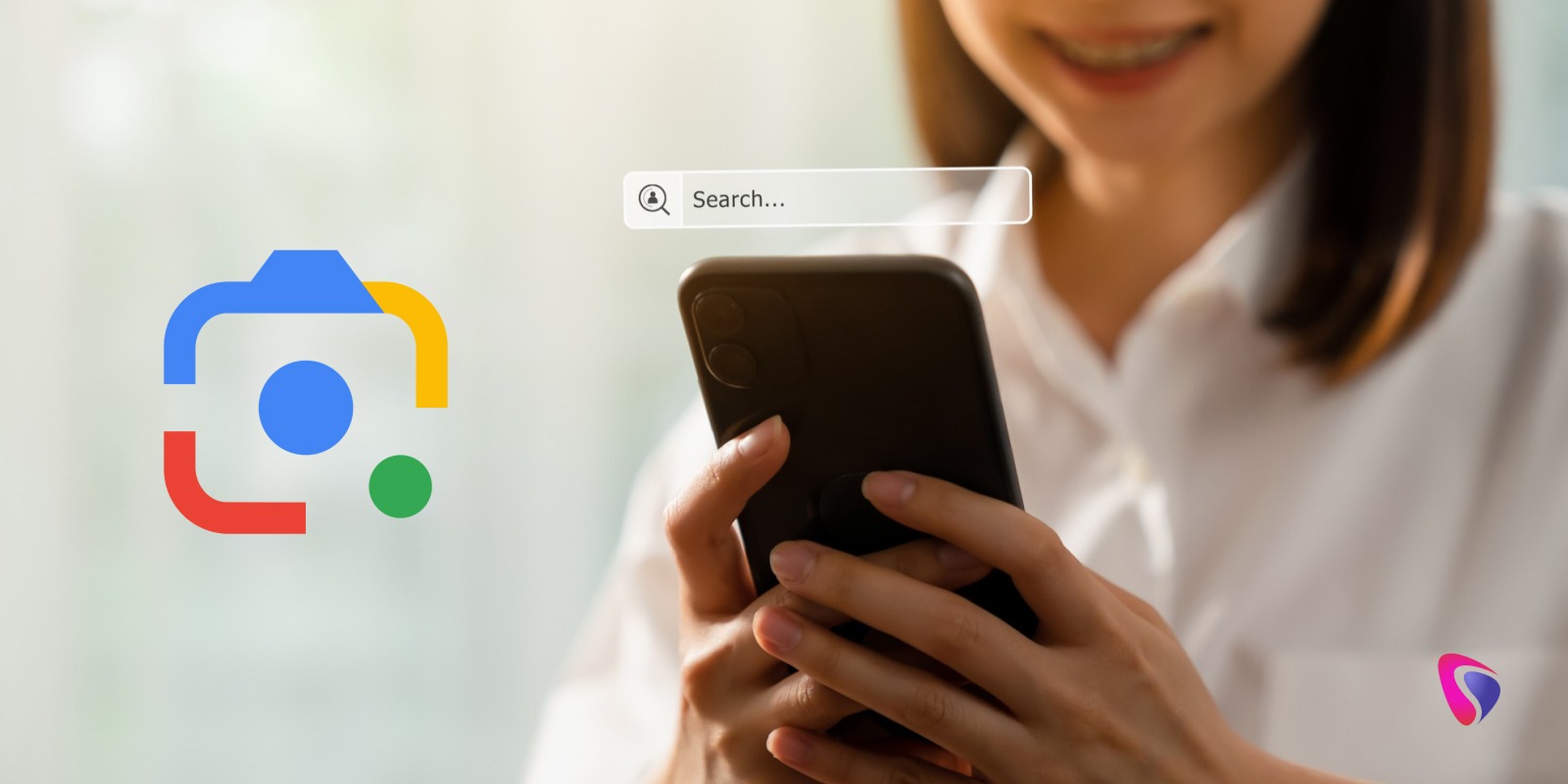




Google processes 40,000 searches every second. When we consider the number of daily searches on Google, the number hovers around 1.2 million. Millions of people around the world use Google to search for information. With that being said, not everyone can find the right words to type on Google. Image-based searches are easier for users. Not to mention their accuracy. Searching for a product, such as a hair timer or body lotion, online can be hard. Additionally, the text on product packaging labels can be in other languages. For example, a pack of noodles may come with instructions in Mandarin or Cantonese.
This is where Google Lens comes into the picture. It can help people find what they want and know more about products. All they have to do is pull out their smartphones and point the camera at the particular image. Pointing the camera at the image helps Google Lens identify the object/product. Then it will proceed to provide further explanation to users. Google was developed to help understand text, but over time, it realized users needed help comprehending images too. Google understood this problem. Mr. Sundar Pichai unveiled Google Lens at Google’s developer conference in 2017.
Voice-powered searches have gained popularity in the past 5 to 6 years. With Google Lens, image-based searches become smooth and effortless. It provides users with an alternative way to search and understand information. What is Google Lens? How can people use it effectively? What are its real-world use cases? In this blog, we will cover multiple aspects related to Google Lens. This includes how to use it and its challenges. Let’s get into the details right away.
What is Google Lens?
Google Lens uses three innovative technologies. These technologies include:
- AI
- Machine Learning
- Image Recognition
Powered by these advanced technologies, Google Lens helps people search for information. They can also explore things and concepts. After analyzing the image, Google Lens provides users with accurate and up-to-date information. This information enables users to make the right decisions.
Users can get answers to questions such as the following:
- What is this product/thing?
- Where can I purchase it?
- If it's a foreign product, does it have local alternatives?
- Does the product have any cons/side effects?
- What does the text translate to in English?
How Does Google Lens Work?
Google Lens operates using deep neural networks. These neural networks are trained on a vast database comprising the following:
- Labelled Images
- Unlabeled Images
- Videos
- Multimodal Data Points
By accessing this vast database, the model learns how to distinguish between different products and objects. These objects can be different shapes and sizes. Google Lens can also distinguish products based on colors and textures. It can also read symbols, texts while understanding spatial relationships. Below is a detailed explanation of how Google Lens works.
1. Image Capturing and Preprocessing
After Google Lens scans an image, it does the following:
- Google Lens resizes, normalizes, and optimizes the image for a detailed analysis.
- Based on the image quality and requirements, Google Lens can also apply noise reduction, contrast adjustment, and edge detection.
- Additionally, Google Lens may analyse multiple frames in real-time. This is to enable live camera use.
Preprocessing the image ensures that it becomes clear and easy for AI to comprehend it before the analysis begins.
2. Visual Feature Extraction
Convolutional Neural Networks (CNNs) and Vision Transformers (ViTs) are what make Google Lens work. These are like the eyes and brain of Google Lens. What exactly do CNNs and ViTs do? They do the following:
- Breaks the image into different parts.
- Then Google Lens extracts basic details, including edges, curves, and colors.
- After grasping the basic details, artificial intelligence combines them to understand:
- Objects
- Faces and Symbols
- Popular Landmarks and Locations
After capturing details as mentioned above, Google Lens converts them into numbers. These numbers are also called embeddings. Embeddings are like the digital fingerprints of the image.
3. Object Detection
Using trained detection models accomplishes the following:
- Identifies the objects in a particular image. It also highlights the location.
- Then, Google Lens analyzes the surroundings and objects inside the image. In the next step, it identifies the location where the image was taken.
- Finally, it establishes the connection between the objects in the image.
So Google Lens understands context instead of simply identifying objects.
4. Text Detection
When Google Lens detects text in an image, it uses OCR, aka Optical Character Recognition technology. This technology helps it identify the text. Next, it identifies the words in the image. The fonts or their placement in the image do not matter.
Google Lens can understand multiple types of text, including the following:
- Printed Text
- Handwritten Notes
- Decorative Fonts
Even if this text is in multiple languages, Google Lens can identify them. Still, the original layout remains the same. Even if the text has headings, paragraphs, and tables, Google Lens does not make any changes whatsoever.
Once Google Lens deciphers the text in the image, users can convert it to different formats. Not just text formats, the text can be converted into audio. Users can use it to perform other tasks, such as calling someone or saving details.
5. Entry Recognition and Labeling
Once Google Lens detects objects and text in the image, it performs entry recognition. Entry recognition includes understanding the text and the objects it represents. This matches what the user’s camera captures, including the following:
- Products
- Locations
- Public Figures
- Animals
- Brands
- Concepts
In this way, entry recognition analyzes what the object means in real life instead of merely considering its appearance.
6. Connection to Google Knowledge Graph
When Google Lens identifies an object in an image, it compares the same with existing data on Google. In order to perform this complex task, it uses the Google Knowledge Graph. What is it? Simply put, it's a massive data repository that contains information about real-world objects and the relationships between them. Note that Google Lens does not search random web pages. It searches verified information. Below is how Google Knowledge Graph helps Google Lens.
- Identifies landmarks and provides key information about the objects.
- Recognizes products while highlighting key features/specifications.
- Understand relationships between countries, brands, and locations.
- Provide clear summaries of crucial information.
7. Web Index and Visual Search Matching
Scanning an image with Google Lens is not just a surface-level scan. It compares the object in the image with millions of images in Google’s database.
Step 1
The first step that Google Lens takes is converting the image into a digital fingerprint. This fingerprint provides detailed information about the product’s colors, patterns, and more.
Step 2
Secondly, Google Lens searches Google’s image and web database completely. This helps it find images similar to the ones being analyzed.
Step 3
Google uses smart ranking systems to determine the most useful machines. It looks for things such as the following:
- The degree of closeness between the matches.
- Popularity of the authenticity of the sources.
- Things people click on when they conduct searches.
Thanks to these steps, Google Lens can ensure the following:
- Find products similar to the ones scanned (not the exact match).
- Identify unknown objects by matching them with similar images on Google.
- Display shopping links, prices, and comparisons (from multiple websites).
8. Multimodal Understanding
Google Lens uses multimodal AI models that combine the following:
- Visual Data (images)
- Text Data (labels, captions, and OCR results)
- User Intent (Location, language, and past searches)
These actions help Google Lens understand:
- What is the product?
- What does it do?
- Where can one buy the product?
- What is the right way to use the product?
9. Real-Time Processing and Feedback
For live camera use
- Real-time updates to results as and when the camera moves.
- Dynamic score adjustment based on lighting.
- Highlights key elements on the screen.
All these actions happen in real-time. It acts like an assistant that has complete access to the user’s camera.
10. Learning and Continuous Improvement
Google Lens will improve its capabilities over time. This happens through the following:
- Aggregated User Interactions (Anonymized)
- Feedback Loops (results on which users tap/click)
- Retrains models using the new data
- Regional and Language Adaptation
The improved capabilities ensure that Google Lens delivers greater accuracy with:
- New Products
- Emerging Landmarks
- Different Languages and Scripts
Step-by-Step Guide on Using Google Lens
Users will need to learn how to use Google Lens on different devices. Also, they can use the tool for many purposes. Below is a brief guide for users on how to use Google Lens.
Pre-Requisites for People to Use Google Lens
- Smartphone (Android or iOS)
- Google App, Google Photos, or the Google Lens App
- An Internet Connection
- Camera Access Enabled
Methods to Use Google Lens on Android
1. Using the Google Lens App
- Open the Google Lens app.
- Point the smartphone’s camera at the object or location.
- Tap the shutter/search button.
- Google Lens analyzes the image and displays results such as the following:
- Object Details
- Text Extraction
- Shopping Links
- Translations
- Location Info
2. Using Google Assistant
- Users can say “Hey Google” to start. Alternatively, they can long-press the Home button.
- Tap the Lens Icon.
- Point the camera and start searching.
3. With Google Phones
- Open Google Photos
- Choose an image
- Tap the Lens icon.
- Begin interaction with the detected text, objects, or links.
Steps to Use Google Lens on an iPhone (iOS)
- Download and install the Google App. Users can also download Google Photos from the App Store.
- Open the app.
- Tap the Google Lens icon in the search bar of the image view.
- Click a photo or use an existing one in the gallery.
- View and use the results.
Steps to Use Google Lens on a Laptop
- Using Google Chrome
- Open Google Chrome.
- Right-click on any image on a webpage.
- Choose the option - Search for images with Google Lens.
- Then the side panel will open. The report will contain details, including visual matches.
- Using Uploaded Images
- Go to Google Images
- Click on the Camera/Lens icon.
- Upload an image.
- Lens will show images and information similar to the uploaded image.
10 Key Features of Google Lens
Below are some of the key features of Google Lens.
1. Visual Search
Google Lens uses the camera or photos to identify the following:
- Animals
- Objects
- Products
- Landmarks
- Artworks
- Text
2. Text Recognition (OCR)
Google Lens detects text in images, documents, books, street signs, and other materials. Users can perform the following actions using the text:
- Copy it to wherever they want for further use.
- Search for the text on Google.
- Listen to the text in the form of audio.
- Translate the text into another language.
3. Real-Time Translation
Translate text into different languages in real-time.
4. Shopping Assistance
Helps find similar products online. Users can compare the prices of these items. Scanning the items will also enable them to read reviews.
5. Problem Solving
Enables users to solve math problems. It can also explain concepts and provide step-by-step solutions.
6. Landmark and Place Info
Merely getting directions to a place/location is not enough. Google Lens helps you do the following:
- Provides details about the monument/place/landmark.
- Delves deep into the history of the same.
- Guides users on how to reach the building/location/landmark.
7. QR and Barcode Scanning
Scans QR codes instantly. This helps users open links and access product-related information.
8. Google Maps Integration
Google Lens integrates seamlessly with the following:
- Google Photos
- Camera
- Google Chrome
- Google Assistant
9. Image-Based Actions
Saves contacts from many sources, including the following:
- Business Cards
- Add Events from Posters
- Copy WiFi Passwords
10. Learning and Improvement
Google Lens works more efficiently and delivers greater accuracy over time. This is because it is trained, plus it learns continuously from new data. Google Lens understands how people use data. This understanding helps it recognize objects, text, and locations better in the future.
8 Crucial Benefits of Google Lens
Using Google Lens has many benefits. However, we will only focus on the 8 most crucial benefits.
1. Instant Object Recognition
All one has to do is point the camera, and Google will do the rest. It can identify the following:
- Objects
- Plants
- Animals
- Landmarks
2. Text Extraction and Copying
Google Lens scans text from various sources, including the following:
- Books
- Menus
- Documents
- Screens
After Google Lens extracts the data, users can copy, edit, or share it quickly.
3. Real-Time Translation
Whenever the smartphone’s camera captures an image, it can convert it to text. Things that Google Lens can translate include the following:
- Signs
- Menus
- Documents
- Labels
4. Smart Search From Images
Users don’t have to type in words on Google to find what they want. They can use images to find items/info similar to the scanned image.
5. Shopping and Price Comparison
The market is full of products, but finding them and making the right choice is not easy. Google Lens can help with the following:
- Finding the right products.
- Compare prices of different products.
- Read reviews.
- Discover the sources of where to buy them.
6. Learning Help
Scanning a particular document, image, or text enables users to:
- Solve Math Problems
- Understanding Complex Concepts
- Get Detailed Explanations
7. Location and Landmark Info
Google Lens provides information related to places that arouse user interest and are interested in visiting. These include the following:
- Famous Places
- Buildings
- Hotels and Restaurants
- Notable Attractions
8. Time Savings
Helps users save time and increase productivity. They don’t have to type and search for things manually. This reduces mistakes while optimizing the search process.
Industry-Wise Use Cases of Google Lens
The use cases of Google Lens are not limited to a specific industry. Below are some of its industry-wise use cases.
- Retail and E-Commerce - Scans products to compare prices online. It also highlights reviews and the availability of similar products.
- Education - Scans questions, diagrams, and text. Then it translates them or explains them as per user requirements.
- Travel and Tourism - Identifies landmarks, monuments, and signs. It also provides historical information related to them if available.
- Healthcare - Google Lens reads and analyzes medicine labels, prescriptions, and medical instructions. Then it deciphers the information for people.
- Real Estate - Scans everything from building designs to interiors. This helps users identify the right materials, styles, and designs for the project.
- Food and Restaurants - Scan menus to view photos and read food reviews. Dishes mentioned in other languages can be translated into English.
- Manufacturing - Pointing Google Lens at a machine helps identify the build type, model, and other details. It also identifies online/offline companies that sell machine parts.
- Logistics and Warehousing - Scans labels, borders, and packages quickly. This helps staff track them in real time.
- Agriculture - Identifies the best crops as per the budget and soil. It also suggests the best treatment for pests and diseases using a camera lens.
- Marketing and Advertising - Scans images, posters and posters instantly. It suggests websites, videos, and offers that sell the products.
Role of AI and Machine Learning in Google Lens
Using a mix of AI and machine learning, Google Lens analyzes the captured images. Then it converts those images into insights. People can use these insights to perform the desired actions.
- Computer Vision - Identifies the following in the images.
- Objects
- Text
- Landmarks
- Plants
- Animals
- Prouducts
- Deep Learning (CNNs) - This observes basic things like edges and colors. Then it identifies shapes and objects. With time, Google Lens can identify and label items accurately.
- OCR (Optical Character Recognition) - Extracts text from images and understands them fully. Whether it's handwritten notes, formatted text, or signs, OCR can extract text from many sources.
- NLP - Natural language processing (NLP) translates text, decodes the meaning, plus translates it into other languages. It can even shorten long text into small points and show search results that match the text.
- Recommendation Models - Provides information relevant to the objects detected by the camera. This information can be links or actions.
Common Problems Faced When Using Google Lens
Below are some of the common problems that users face when using Google Lens. Solutions are provided along with the problems.
1. Blurry or Unclear Images
The solution lies in clearing the lens. Then, the individual should click on an image by focusing on the object in a well-lit environment.
2. Incorrect Object Recognition
Take a clearer image of the object. Get closer to the object if necessary.
3. Limited Language Support
Go to Google settings and switch to another language.
4. App Crashing Frequently
Try updating or reinstalling the Google app.
5. Text Not Detected
Ensure that the text is clearly visible and in simple fonts. Also, the environment must have ample light.
6. Privacy Concerns
Review and manage Google Lens permissions.
7. Irrelevant Results
Users must crop the image as desired. This will help Google Lens focus on the object.
8. Feature Unavailable on Device
If a particular feature is unavailable on a device, it is recommended to update the Android/iOS. Users can even switch to a supported device.
Summing Up..
Google Lens is an excellent tool for users who want a smart search option. Not only does it remove the need to type text, but it also produces fast results. However, users should not depend on it completely. In cases of medical advice, Google Lens results should not be considered the final word. As AI is evolving constantly, we should take such results with a pinch of salt.
In 2026, visual search is one of the hottest trends. Tools like Google Lens are at the forefront of this search revolution. In this blog, we discussed how to use Google Lens along with challenges and more. This information will help people get the most out of Google Lens.